Category: Tech Tips

  • UniFi Losing Static IPv6 Connectivity

    I am using a static IPv6 address provisioned by my ISP.

    I recently encountered an issue with my UDM Pro not being able to ping public IPv6 addresses. The ping command returned a “Network is unreachable” error.

    I fixed it by changing a value in the WAN settings for that connection, saving it, and then correcting it again.

  • Windows System File Maintenance

    I like to occasionally run scans on my Windows system files to ensure my Windows installation is stable.

    Step 1: Run DSIM

    Open Command Prompt as administrator and run the following command

    DISM.exe /Online /Cleanup-image /Restorehealth 

    This may take a few minutes. When completed, follow step 2 in the same Command Prompt.

    Step 2: Run the system file checker

    Run the following command in Command Prompt.

    sfc /scannow

    If any integrity violations were found and repaired, reboot your computer.

    This support article on Microsoft.com has more details if you need them.

  • Windows 10 Not Booting After Drive Clone

    An SSD was failing, and the cloning process did not go well. When I tried booting from the drive, it immediately failed with a generic Error code of 0xc000000e.

    Solution:

    Boot from a Windows installation USB or Disk.

    Enter the troubleshooting menu and open the Command Prompt.

    Ensure the boot drive is not an MBR disk by going through this series of commands. Hit enter after each one.

    diskpart
    select disk 0
    list partition

    This should result in a list of partitions. Select your primary partition.

    select partition 4
    active

    This may result in a message saying “The ACTIVE command can only be used on fixed MBR disks.” If that is the case type

    exit

    So if that is the case, we can switch to a different strategy. Check to see if drive C is your Windows drive by entering

    c:

    and then

    dir

    You should see a list of folders that include Windows and Users. If you don’t, try looking at drive D or E.

    If drive C is your drive, type

    bcdboot c:\windows

    If you get the message that the boot files have been successfully created, you can try booting to Windows. If it is a different drive, substitute that drive letter in the previous command.

  • Get Into Windows Without Password

    Note: This works on computers with only one active user. If this is the case, you will need to boot from a USB stick to copy the cmd.exe file. The instructions are roughly the same, except for the method by which you get there. You can boot from a live Linux environment or from a Windows installation drive. In the case of the latter, you can pull up a terminal by pressing Shift+F10 on the first screen.

    At the Windows Login screen, click the power symbol in the lower right corner. Hold shift and select “Restart.” Keep holding Shift through the reboot until the Windows boot screen says “Please wait.”

    Select “Advanced” under Recovery Options and then open the Command Prompt.

    Enter this command and press Enter

    cd C:\Windows\System32
    Caveats

    The Windows PE drive letters may not align with the Windows proper lettering. In this case, you may need to run this command to list the available drives to find the active Windows installation:

    fsutil fsinfo drives

    If that doesn’t work, use this command:

    wmic logicaldisk get caption

    I also had a strange issue where it didn’t seem to honor the cd command until I entered this command

    C: dir

    Enter these commands and hit the Enter key after each.

    rename utilman.exe utilman.exebak
    copy cmd.exe utilman.exe

    Close the terminal and select the option to continue booting into Windows. This time, when you get to the login screen, click the Accessibility button. This will open a command prompt with Administrator privileges.

    Enter this command and hit Enter:

    net user administrator /active:yes

    Then, enter this command and edit the password for the Administrator account.

    control userpasswords2

    If, for some reason, that doesn’t work, run this command

    net user <username> *

    Hit Enter and set a new password.

    Now reboot one more time. This time, when you get to the login screen, you will be able to select the Administrator user in the lower left corner. Enter the password you set in the last step, and you’re in!

  • Microsoft PowerApps Pages SSL Certificate Maintenance

    1. Steps to create a new certificate in Namecheap and install it on your PowerApps Pages domain.
    2. Generate a CSR using this tool https://decoder.link/csr_generator
      1. Domain: the.domainyouwishtosec.ure
        1. Locality: YourTown
        2. State: Your State
        3. Organization: Name Of Your Organization
        4. Email: [email protected]
        5. Two-letter country abbreviation: US
    3. SAVE THE PRIVATE KEY!
      1. To use it, it will need to be in a .key file. You can create one by pasting the Private Key from the CSR creation step into a text editor and saving the file with a .txt extension
      2. To keep things clean, use the name the_domainyouwishtosec_ure.txt
      3. After this is done, close the file and change the file extension to .key so it looks like this the_domainyouwishtosec_ure.key
    4. Copy the CSR text and paste it into the Namecheap form asking you to Renew the certificate.
    5. Download the files it generates. They may be emailed to you and you can download them from the portal also. Unzip it.
    6. Generate a .pfx file using the tool here https://decoder.link/converter Upload the the_domainyouwishtosec_ure.p7b file
    7. Upload thethe_domainyouwishtosec_ure.key file you created earlier
    8. Create a strong password. You will use this password later so save it. Random and at least 20 characters
    9. Save and unzip the .zip file to reveal the .pfx file
    10. Upload the file to your PowerApps Page portal
      1. Click on “Manage SSL certificates”
      2. A panel will fly out from the right side
      3. Under the section titled “Manage SSL certificates” click the +New
      4. Select the .pfx file and enter the password you created.
      5. Wait 3 beats and click OK.
    11. The final step is to delete the old SSL certificate and bind the new one to the domain.

    The first time I did this, the Microsoft page threw errors. I created a new .pfx file and all was well.

  • Image in Gmail Signature Not Showing in Outlook [Workaround]

    Google does not officially support embedding images in email signatures. While you can add an image to a signature, it gets sent as a linked image, which Outlook will not display. However, I found a workaround to embed the image directly into the email.

    Step-by-Step Guide

    1. Optimize and Encode Your Image:
      • Use an optimized image with a limited color palette and reduced size to minimize the encoded text length.
      • Encode your image to base64 using an online tool like elmah.io’s Base64 Image Encoder.
      • You will copy the code generated in the “HTML usage:” output.
    2. Create an HTML File:
      • Open your favorite text editor and create a new file.
      • Insert the following basic HTML structure:
        <!DOCTYPE html>
        <!-- Replace this line with the code from the "HTML usage:" output -->
        </html>
      • Replace the second line with the code from the “HTML usage:” box.
      • Save the file with a .html extension.
    3. Render and Copy the Image:
      • Open the HTML file in your browser. You should see your image rendered.
      • Select and copy the image in the browser.
    4. Add the Image to Your Gmail Signature:
      • Compose a new email in Gmail and paste the copied image into the message body.
      • Send the email to yourself.
      • Open the received email and copy the image from there.
      • Go to Gmail Settings, select “See all settings,” and scroll down to the Signature section.
      • Paste the copied image into your signature and edit the text as desired.
      • Scroll to the bottom of the page and save your settings.
    5. Verify and Maintain the Image:
      • Send a test email to someone who uses Outlook to verify that the image displays correctly.
      • Archive the original email that contains the image, but do not delete it, as (I believe) the signature pulls the image from the original email to embed the image.

    Important Notes

    • Mobile Compatibility: Currently, this method does not work with the Gmail app on iOS. The image will show while composing an email, but the recipient will only see a placeholder once the email is sent. To avoid this, enable the “Mobile Signature” feature in the Gmail app.

    By following these steps, you can successfully embed an image in your Gmail signature that will display correctly in Outlook.

    Disclosure: I wrote this post and then prompted ChatGPT to “edit this blog post for clarity:” This post is only lightly edited from that output.

  • Adobe Acrobat Closes Immediately After Opening [Workaround]

    Occasionally, Adobe Acrobat will close again almost immediately after opening. Here is a short video capturing the problem.

    To fix it, open Adobe Acrobat Distiller instead. The authentication pop-up will stay open and you can complete your authentication. In my case, I needed to de-authorize another instance of my computer so I could authenticate again.

  • SMB Share on Upgraded TrueNAS Cobia Not Allowing Admin To Change Permissions

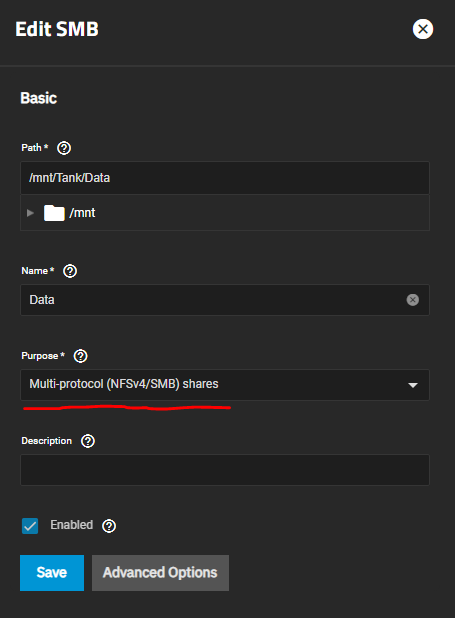
    NOTE: This setting needs to be set to “Default share parameters” in TrueNAS SCALE Fangtooth 25.04

    I recently upgraded a TrueNAS Core server to TrueNAS Scale. I first went to Bluefin and then to Cobia. I had no Apps and the process was straightforward.

    After the upgrade, I could no longer edit Security settings on folders in Windows. I tried using the Microsoft Management Console (MMC) and File Explorer. The error titled “Error applying security” said, “The request could not be performed because of an I/O device error.” 

    THE FIX: I deleted the old SMB Share and created a new one with the same name. The new share needs to have the NFSv4/SMB preset selected.

    It was a seamless change that didn’t disrupt the drives mapped on Domain clients.

    The process I used to get there was a bit more convoluted. I first added a new share called Data2. I connected to Data2 with File Explorer and discovered that I could edit the Security settings. Then I renamed Data to Data1 and renamed Data2 to Data. The clients were still able to connect, but I was no longer able to edit the Security settings.

    This made me think that there was a residual config file or something so I created another new share called Data3. I then deleted Data and renamed Data3 to Data. I verified that it was working and finally deleted Data1.

  • Single Step Repair “Trust Relationship Between Workstation and Primary Domain Failed”

    There is a simple method to re-establish the trust relationship between the workstation and the domain controller. It only involves a single restart and a single step.

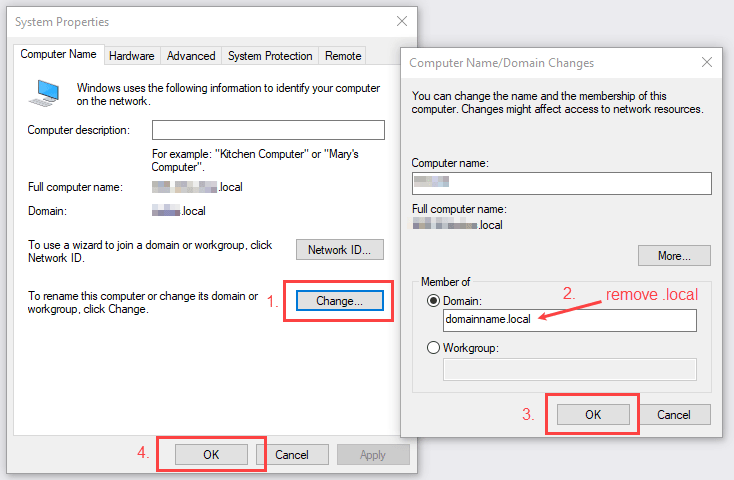
    Open System Properties. This varies by Windows version. On Windows 10 and 11, open “Settings” select “System” and then open “About”. In Windows 10 select “Advanced system settings” on the right. In Windows 11 select “Domain or workgroup”. Both of them will give you a window that looks like this.

    1. Select Change… and another window will pop up
    2. Remove .local from the Domain: field
    3. Click OK and it will welcome you to the domain.
      • Click OK on the welcome message
    4. Click OK on the System Properties window. It will warn you that a restart is required so accept that to reboot the workstation.

    Everything should be as before. If you open the window back up after the reboot, the .local domain name will again be in that field.

  • Use the System File Checker tool to repair missing or corrupted system files

    For the sake of data redundancy, I have copied this from Microsoft Support and claim no credit for any of this excellent documentation.

    If some Windows functions aren’t working or Windows crashes, use the System File Checker to scan Windows and restore your files.  
     
    Though the steps below might look complicated at first glance, just follow them in order, step-by-step, and we’ll try to get you back on track.

    Run the System File Checker tool (SFC.exe)

    To do this, follow these steps:

    1. Open an elevated command prompt. To do this, do the following as your appropriate:
    2. If you are running Windows 10, Windows 8.1 or Windows 8, first run the inbox Deployment Image Servicing and Management (DISM) tool prior to running the System File Checker.  (If you are running Windows 7 or Windows Vista, skip to Step 3.) 

    Type the following command, and then press Enter.  It may take several minutes for the command operation to be completed.

    DISM.exe /Online /Cleanup-image /Restorehealth

    Important: When you run this command, DISM uses Windows Update to provide the files that are required to fix corruptions. However, if your Windows Update client is already broken, use a running Windows installation as the repair source, or use a Windows side-by-side folder from a network share or from a removable media, such as the Windows DVD, as the source of the files. To do this, run the following command instead:

    DISM.exe /Online /Cleanup-Image /RestoreHealth /Source:C:\RepairSource\Windows /LimitAccess

    Note: Replace the C:\RepairSource\Windows placeholder with the location of your repair source. For more information about using the DISM tool to repair Windows, reference Repair a Windows Image.

    1. At the command prompt, type the following command, and then press ENTER:
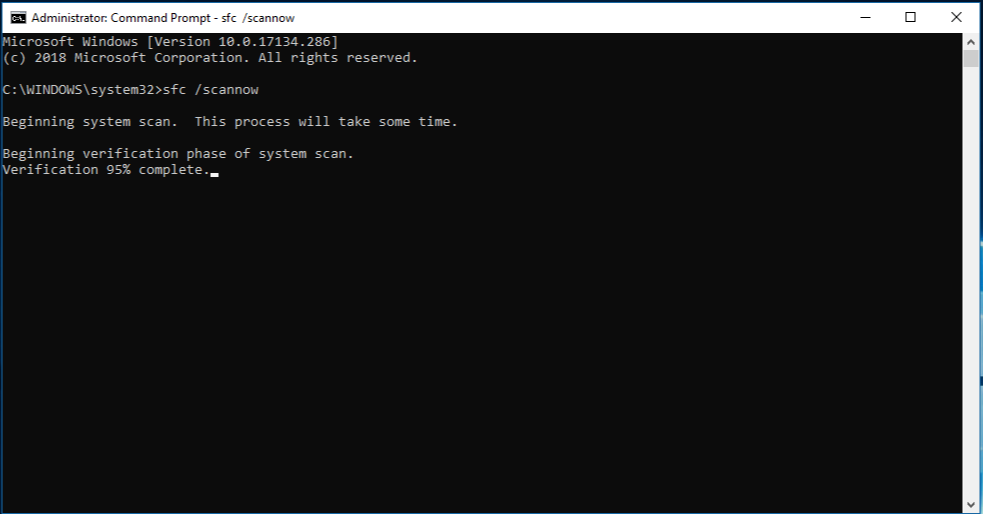
    sfc /scannow
    Command Prompt with administrator rights - sfc /scannow

    The sfc /scannow command will scan all protected system files, and replace corrupted files with a cached copy that is located in a compressed folder at %WinDir%\System32\dllcache.
    The %WinDir% placeholder represents the Windows operating system folder. For example, C:\Windows.

    Note: Do not close this Command Prompt window until the verification is 100% complete. The scan results will be shown after this process is finished.

    1. After the process is finished, you may receive one of the following messages:
      • Windows Resource Protection did not find any integrity violations.
        This means that you do not have any missing or corrupted system files.
      • Windows Resource Protection could not perform the requested operation.
        To resolve this problem, perform the System File Checker scan in safe mode, and make sure that the PendingDeletes and PendingRenames folders exist under %WinDir%\WinSxS\Temp.
      • Windows Resource Protection found corrupt files and successfully repaired them. Details are included in the CBS.Log %WinDir%\Logs\CBS\CBS.log.
        To view the detail information about the system file scan and restoration, go to How to view details of the System File Checker process.
      • Windows Resource Protection found corrupt files but was unable to fix some of them. Details are included in the CBS.Log %WinDir%\Logs\CBS\CBS.log.
        To repair the corrupted files manually, view details of the System File Checker process to find the corrupted file, and then manually replace the corrupted file with a known good copy of the file.

    More Information

    How to view details of the System File Checker process

    To view the details that are included in the CBS.Log file, you can copy the information to the Sfcdetails.txt file by using the Findstr command and then view the details in the Sfcdetails.txt. To do this, follow these steps:

    1. Open an elevated command prompt as described in the previous step 1.
    2. At the command prompt, type the following command, and then press ENTER:findstr /c:"[SR]" %windir%\Logs\CBS\CBS.log >"%userprofile%\Desktop\sfcdetails.txt" Note The Sfcdetails.txt file contains details from every time that the System File Checker tool has been run on the computer. The file includes information about files that were not repaired by the System File Checker tool. Verify the date and time entries to determine the problem files that were found the last time that you ran the System File Checker tool.
    3. Open the Sfcdetails.txt file from your desktop.
    4. The Sfcdetails.txt file uses the following format:Date/Time SFC detail The following sample log file contains an entry for a file that could not be repaired: 2007-01-12 12:10:42, Info CSI 00000008 [SR] Cannot repair member file [l:34{17}]”Accessibility.dll” of Accessibility, Version = 6.0.6000.16386, pA = PROCESSOR_ARCHITECTURE_MSIL (8), Culture neutral, VersionScope neutral, PublicKeyToken = {l:8 b:b03f5f7f11d50a3a}, Type neutral, TypeName neutral, PublicKey neutral in the store, file is missing

    How to manually replace a corrupted system file with a known good copy of the file

    After you determine which system file was corrupted and could not be repaired through the detail information in the Sfcdetails.txt file, find where the corrupted file located, and then manually replace the corrupted file with a known good copy of the file. To do this, follow these steps:

    Note You may be able to get a known good copy of the system file from another computer that is running the same version of Windows with your computer. You may perform a System File Checker process on that computer to make sure the system file that you intend to copy is a good copy.

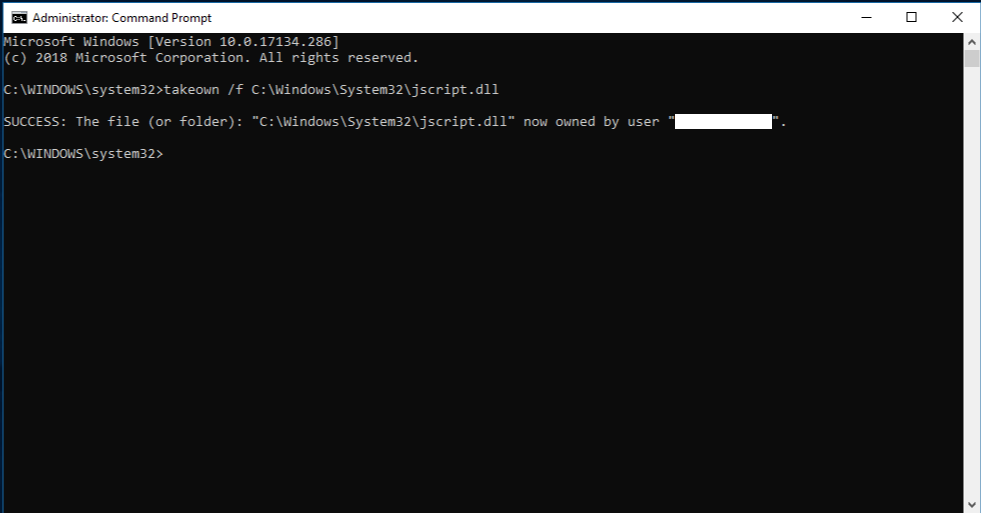
    1. Take administrative ownership of the corrupted system file. To do this, at an elevated command prompt, copy and then paste (or type) the following command, and then press ENTER:takeown /f Path_And_File_Name Note The Path_And_File_Name placeholder represents the path and the file name of the corrupted file. For example, type takeown /f C:\windows\system32\jscript.dll. 
      Command Prompt with administrator rights - command succeeded
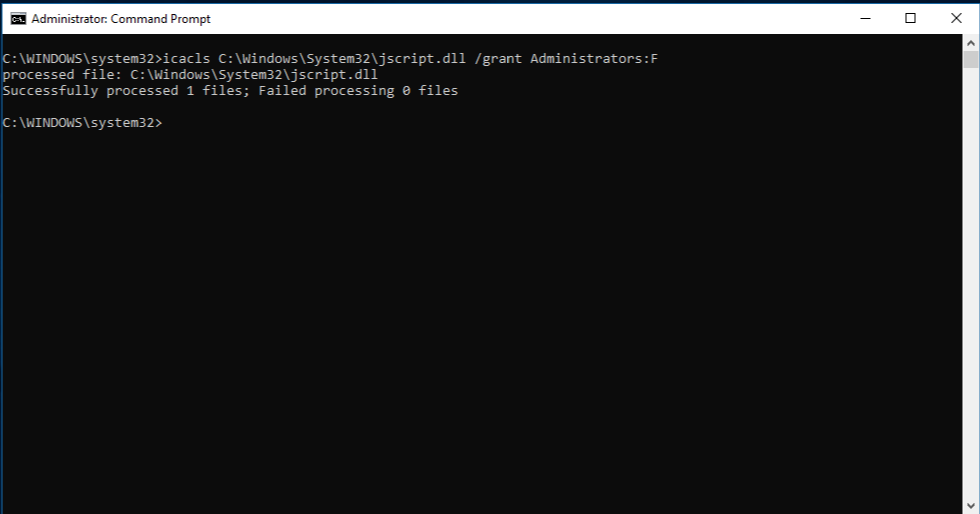
    2. Grant administrators full access to the corrupted system file. To do this, copy and paste (or type) the following command, and then press ENTER:icacls Path_And_File_Name /GRANT ADMINISTRATORS:F Note The Path_And_File_Name placeholder represents the path and the file name of the corrupted file. For example, type icacls C:\windows\system32\jscript.dll /grant administrators:F.
      Command Prompt with administrator rights
    3. Replace the corrupted system file with a known good copy of the file. To do this, copy and paste (or type) the following command, and then press ENTER: Copy Source_File Destination Note The Source_File placeholder represents the path and file name of the known good copy of the file on your computer, and the Destination placeholder represents the path and file name of the corrupted file. For example, type copy E:\temp\jscript.dll C:\windows\system32\jscript.dll.

    If the steps above don’t work, you may need to reinstall Windows. For more info, see Windows 10 recovery options.

  • Lock My PC Scam

    I just finished tussling with a client’s computer that was locked with a small legitimate program called Lock My PC from FSPro Labs. I found several articles talking about the response they had to an increase in the nefarious use of their program. Here is one of them at Bleeping Computer talking about the response fspro.net/lock-pc/ had for the scammers.

    My customer had been scammed and had enough of dealing with them. The clowns threatened him with locking him out of his computer if he didn’t give them his banking login details. They were planning to make good on their threat with this program. It was very scary for him, but thankfully I was able to help him out of his pickle.

    The recovery method offered on this page https://fspro.net/_service/lmpc-passrec/ did not work for me and after further digging, I realized that I was dealing with Lock My PC v4.6 and not with the latest v4.9.6. Ah ha! A clue!

    The program is no longer offered by FSPro for download so I turned to Major Geeks for the newest version https://www.majorgeeks.com/files/details/lock_my_pc.html. After a boot into safe mode and an upgrade install of the program, the fix worked! Entering the code provided by FSPro revealed a recovery code that when entered into the online tool generated a passkey to unlock the program. The same passkey worked to unlock it at uninstall also.

    A quick swipe with Revo Uninstaller later and everything is gone!

    Kudos to FSPro for a decisive action to cut these crooks off at the knees.

  • Logitech Mouse Hitching in Windows 10 Fixed

    Logitech Mouse Hitching in Windows 10 Fixed

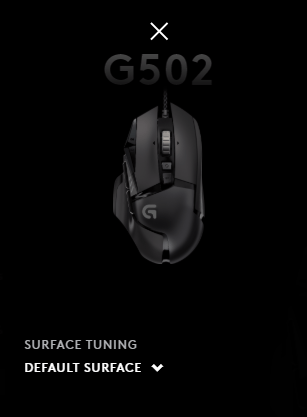
    My Logitech G502 was plaguing me with intermittent hitching. Sometimes it would work great for days and other times it would be barely usable. I assumed it was a driver or Windows issue. I tried many suggested solutions and none of them worked. The problem even pursued me through a major computer platform upgrade from Intel to AMD. The common denominator ended up being the mouse itself.

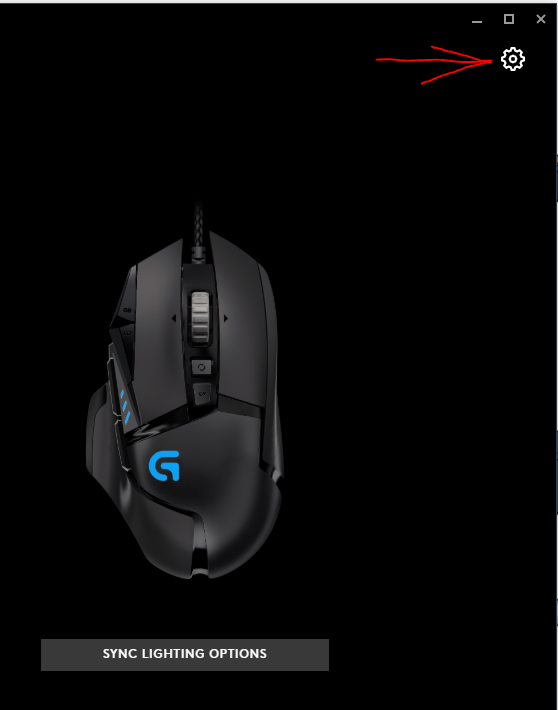
    I installed Logitech G Hub and poked around until I discovered that I was able to edit the onboard settings of the mouse.

    The Surface Tuning was set to custom. I changed it to default and it started behaving perfectly.

  • Repair error 3371 status code 11118 in Quickbooks

    I have used this solution in two different situations when I changed hard drives in computers by imaging the old one. I ripped it from here for the sake of preserving knowledge. I don’t trust Intuit.
    If the encrypted file containing your licence number and product code is damaged, QuickBooks will not open, and might display an error message. In those situations, deleting the entitlement file and reentering your license and product information may resolve the issue.

    To rename the entitlement file (QB 2013):

    1. Close QuickBooks if it’s open.
    2. Open the entitlement data folder for your operating system and version of QuickBooks.
      1. On your keyboard, press Windows + R to open the Run window.
      2. Enter (or copy and paste) the following information, and then press Enter
        1. QuickBooks 2013-2016 and Enterprise 13.0: C:\ProgramData\Intuit\Entitlement Client\v8
    3. Right-click the EntitlementDataStore.ecml file and select Delete.
    4. Click Yes to confirm you want to delete the file.
    5. Open QuickBooks, open your company file, and follow the instructions to register the application.

    Thank you IntuitVince

  • How to Add or Change the Manufacturer Information for your Computer

    If you build your own computers, you will occasionally notice in various places that the manufacturer of your computer is listed as unknown. The system properties applet will show the information you place using this method.

    Add or Change the Manufacturer Information for your Computer

    1. Open the Registry editor.
      • Click Start, type regedit.exe and press ENTER
    2. Navigate to the following location
      HKEY_LOCAL_MACHINE\SOFTWARE\Microsoft\Windows\CurrentVersion\OEMInformation

      Note: If the OEMInformation key is missing, you’ll need to create one manually.

    3. Create string values (REG_SZ) and add matching data, as per the table below:
      Value name Data Value type
      Logo <Path to your logo file>* REG_SZ
      Manufacturer <System manufacturer name> REG_SZ
      Model <System Model number> REG_SZ
      SupportHours <Support hours> REG_SZ
      SupportPhone <OEM Support Phone number> REG_SZ
      SupportURL <OEM Support URL> REG_SZ
    4. Exit Registry Editor.
    5. * Note: Logo is ignored on Windows 10 Anniversary. The logo should be a 32 bit or flaked 24 bit image BMP file with the dimension of 120×120. Logos larger than 120×120 pixels are scaled to 120×120.

    Shamelessly copied from here for knowledge redundancy.

  • Restore Windows Photo Viewer in Windows 10

    Restore Windows Photo Viewer in Windows 10

    If you would like to use and or restore Windows Photo Viewer as your default photo viewer in Windows 10, this write-up is for you. askvg.com

  • Move Primary Domain Controller to New Server

    Copied from Ali’s Blog (link removed because blog is now dead) for my own convenience and for the sake of knowledge redundancy.
    Here is a High Level process of migrating from a server 2003 PDC to 2008R2 PDC (Or to any new windows server):
    1.     Configure a new server 2008 R2
    2.     Join to the domain
    3.     Run adprep /forestprep on the server 2003 PDC (This can be found in the tools directory of Server2008r2 dvd)
    4.     raise the Domain and forest functional levels to 2003 in Active Directory Domains & Trusts
    5.     Run adprep /domainprep on the server 2003 pdc
    6.     Run DCpromo to add it as secondary DC, make the new server a GC and DNS server
    7.     Move all 5 FSMO roles to the new server (See Below)
    A.    Schema
    B.    Domain Naming
    C.    RID
    D.    PDC Emulator
    E.    Infrastructure
    8.     Leave the two servers to replicate for an acceptable period.
    9.     Run DCpromo on the old server and demote from DC role.
    A.    Note that this is an important step to decommission the server properly from the network
    B.    If this step is skipped, the new server will still have all the traces of the old server in DNS and everywhere
    C.    This may cause issues down the line.
    10.  Once the server is gracefully decommissioned, take it off the domain
    11.  Shut down and remove from network.
    Further details shamelessly copied from KB 324801
    FSMO Roles
    In a forest, there are at least five FSMO roles that are assigned to one or more domain controllers. The five FSMO roles are:
    ·      Schema Master: The schema master domain controller controls all updates and modifications to the schema. To update the schema of a forest, you must have access to the schema master. There can be only one schema master in the whole forest.
    ·      Domain naming master: The domain naming master domain controller controls the addition or removal of domains in the forest. There can be only one domain naming master in the whole forest.
    ·      Infrastructure Master: The infrastructure is responsible for updating references from objects in its domain to objects in other domains. At any one time, there can be only one domain controller acting as the infrastructure master in each domain.
    ·      Relative ID (RID) Master: The RID master is responsible for processing RID pool requests from all domain controllers in a particular domain. At any one time, there can be only one domain controller acting as the RID master in the domain.
    ·      PDC Emulator: The PDC emulator is a domain controller that advertises itself as the primary domain controller (PDC) to workstations, member servers, and domain controllers that are running earlier versions of Windows. For example, if the domain contains computers that are not running Microsoft Windows XP Professional or Microsoft Windows 2000 client software, or if it contains Microsoft Windows NT backup domain controllers, the PDC emulator master acts as a Windows NT PDC. It is also the Domain Master Browser, and it handles password discrepancies. At any one time, there can be only one domain controller acting as the PDC emulator master in each domain in the forest.
    You can transfer FSMO roles by using the Ntdsutil.exe command-line utility or by using an MMC snap-in tool. Depending on the FSMO role that you want to transfer, you can use one of the following three MMC snap-in tools:
    Active Directory Schema snap-in
    Active Directory Domains and Trusts snap-in
    Active Directory Users and Computers snap-in
    If a computer no longer exists, the role must be seized. To seize a role, use the Ntdsutil.exe utility. 
    For additional information about how to use the Ntdsutil.exe utility to seize FSMO roles, click the article number below to view the article in the Microsoft Knowledge Base:
    255504 Using Ntdsutil.exe to Seize or Transfer the FSMO Roles to a Domain
    Transfer the Schema Master Role
    Use the Active Directory Schema Master snap-in to transfer the schema master role. Before you can use this snap-in, you must register the Schmmgmt.dll file. 
    Register Schmmgmt.dll
    1.    Click Start, and then click Run.
    2.    Type regsvr32 schmmgmt.dll in the Open box, and then click OK.
    3.    Click OK when you receive the message that the operation succeeded.
    Transfer the Schema Master Role
    1.    Click Start, click Run, type mmc in the Open box, and then click OK.
    2.    On the File, menu click Add/Remove Snap-in.
    3.    Click Add.
    4.    Click Active Directory Schema, click Add, click Close, and then click OK.
    5.    In the console tree, right-click Active Directory Schema, and then click Change Domain Controller.
    6.    Click Specify Name, type the name of the domain controller that will be the new role holder, and then click OK.
    7.    In the console tree, right-click Active Directory Schema, and then click Operations Master.
    8.    Click Change.
    9.    Click OK to confirm that you want to transfer the role, and then click Close.
    Transfer the Domain Naming Master Role
    1.    Click Start, point to Administrative Tools, and then click Active Directory Domains and Trusts.
    2.    Right-click Active Directory Domains and Trusts, and then click Connect to Domain Controller.

    NOTE: You must perform this step if you are not on the domain controller to which you want to transfer the role. You do not have to perform this step if you are already connected to the domain controller whose role you want to transfer.

    3.    Do one of the following:
    o  In the Enter the name of another domain controller box, type the name of the domain controller that will be the new role holder, and then click OK.

    -or-

    o  In the Or, select an available domain controller list, click the domain controller that will be the new role holder, and then click OK.
    4.    In the console tree, right-click Active Directory Domains and Trusts, and then click Operations Master.
    5.    Click Change.
    6.    Click OK to confirm that you want to transfer the role, and then click Close.
    Transfer the RID Master, PDC Emulator, and Infrastructure Master Roles
    1.    Click Start, point to Administrative Tools, and then click Active Directory Users and Computers.
    2.    Right-click Active Directory Users and Computers, and then click Connect to Domain Controller.

    NOTE: You must perform this step if you are not on the domain controller to which you want to transfer the role. You do not have to perform this step if you are already connected to the domain controller whose role you want to transfer.

    3.    Do one of the following:
    o  In the Enter the name of another domain controller box, type the name of the domain controller that will be the new role holder, and then click OK.

    -or-

    o  In the Or, select an available domain controller list, click the domain controller that will be the new role holder, and then click OK.
    4.    In the console tree, right-click Active Directory Users and Computers, point to All Tasks, and then click Operations Master.
    5.    Click the appropriate tab for the role that you want to transfer (RIDPDC, or Infrastructure), and then click Change.
    6.    Click OK to confirm that you want to transfer the role, and then click Close.
  • Restore Lenovo G550 Laptop to Factory Settings

    My latest struggle in restoring a computer to usefulness after a virus infection led me to throw my hands into the air and do a system restore. Of course, the laptop came with no restoration discs and the extra partition on the hard drive usually used in lieu of them did not seem to contain the required files. My google search on how to do this led me to these gems which I will post here just in case they get lost in the woods.

    From the Lenovo Users Guide (Page 23)

    Chapter 4. OneKey Rescue System

    OneKey Rescue System

    Introduction

    The Lenovo OneKey Rescue System is an easy-to-use application that can be used to back up the data on your system partition (C drive) for easy restore when required. You can run Lenovo OneKey Recovery under the Windows operating system, and the OneKey Rescue System without starting the Windows operating system.

    Attention:
    In order to utilize the features of the OneKey Rescue System, your hard disk already includes a hidden partition by default to store the system image file and OneKey Rescue System program files. This default partition is hidden for security reasons and is the reason the available disk space is less than it claims. The exact available hard disk space depends on the file size of the mirror image file (based on the size of operating system and preinstalled software).

    Using Lenovo OneKey Recovery (Within Windows operating system)
    In Windows operating system, double click the OneKey Recovery System Icon on the desktop to launch Lenovo OneKey Recovery.
    Within the program, you can back up the system partition on the hard disk drive, other storage devices, or by creating recovery discs.
    For more instructions, see the help file of Lenovo OneKey Recovery.

    Using Lenovo OneKey Rescue System (Without Windows operating system)
    In the event that the operating system cannot be loaded, follow the steps below to access OneKey Rescue System.
    • Shut down your computer.
    • Press the key to launch OneKey Rescue System.
    Within the program, you can choose to restore your system partition to the original factory status, or to a previously generated backup.

    Notes:
    • The backup process and creation of recovery discs may take some time, connect the AC adapter and battery pack to your computer.
    • After the recovery discs are burned, please number them so that you can use them in the correct order.
    • Computers without an integrated optical drive support the creation of recovery discs; however an appropriate external optical drive is needed to physically create the recovery discs.
    Note: The recovery process is irreversible. Make sure to back up any critical data before using the recovery feature.

    Posted by joyson baira on fixya.com

    Hi,

    All you need to do is removed the battery and unplugged the charger then press and hold the power button for 15 seconds then connect the laptop directly to the power outlet without using the battery just for the meantime then press the little button near the power button which has a drawing of an arrow going to the lef or soing down like a horseshoe or headset, press that button then you will see there One Key Recovery, choose that one then choose restore from factory default, then choose restore from initial back up then click OK and Start, that will restore your computer from the factory default, if this button doesnt work, contact lenovo to asked for a cd, its free and you just have to pay for the shipping which is $10.

    Hope this will help…

  • Cannot start Microsoft Outlook. Cannot open the Outlook window.

    This morning I encountered this error when I tried to open Outlook. “Cannot start Microsoft Outlook. Cannot open the Outlook window.” Turns out, all you need to do is go to run and type or paste “outlook.exe /resetnavpane”.

    • In XP “run” is located at Start > Run…
    • In Vista and Windows 7 it is combined with the search box that is at the bottom of the menu that pops up when you click on the round glow ball that took the place of the Start button.
  • How to Delete (or Force Delete) Print Jobs

    When you have a print job stuck in the “deleting” stage, you either need to reboot your computer or follow these instructions.

    1. Open Command Prompt as Administrator
      • Click Start, type cmd, then right-click and choose Run as administrator.
    2. Stop the Print Spooler
      • In the Command Prompt, type:
        net stop spooler
      • Hit Enter
    3. Delete the Stuck Files
      • Open this folder: Windows\System32\spool\PRINTERS folder
      • Delete any files ending in .SPL or .SHD
    4. Restart the Print Spooler
      • Back in Command Prompt, type:
        net start spooler
      • Hit Enter

    Pro tip: Hit the up/down arrow keys in Command Prompt to cycle through your previous commands. This allows you to make small modifications or corrections to previously typed commands without needing to retype the entire string. In this case, when you get back to the Command Prompt, you can hit the up arrow once, tap back and remove “op” and enter “art” and hit enter.

  • IBM ServerGuide

    IBM ServerGuide download matrix
    https://www-304.ibm.com/systems/support/supportsite.wss/docdisplay?lndocid=SERV-GUIDE&brandind=5000008


    This is the installation disc that makes things so much easier when you are attempting to do a fresh install on an IBM xSeries server.